Free OCR Tool —
Image to Text Instantly

Extract text from images, screenshots, and scanned PDFs right in your browser. No install, no upload, no sign-up. Runs 100% client-side — your files never leave your device.

Try OCR Online — Free See How It Works
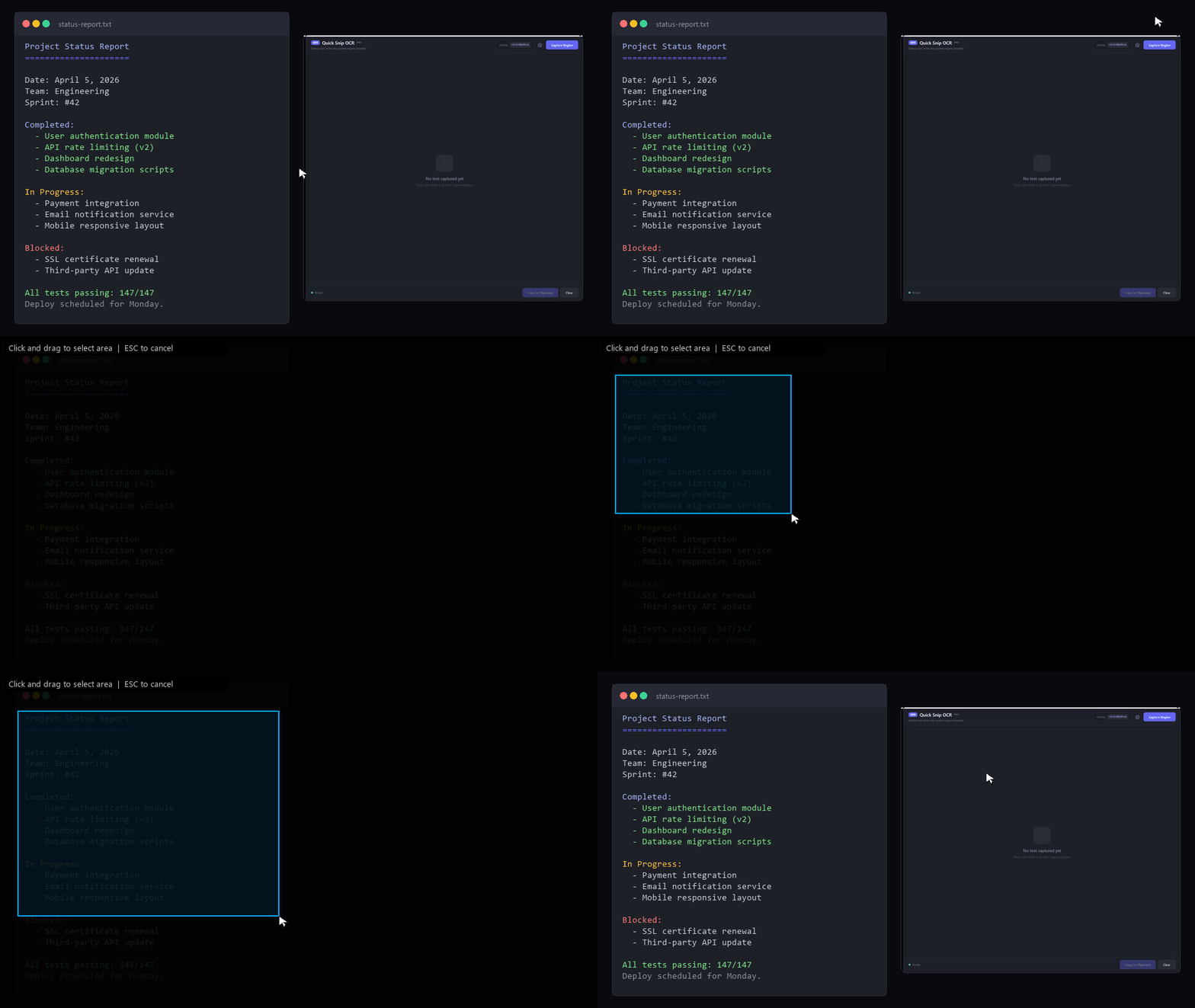
SnapOCR demo — capture screen text with a hotkey, extract with OCR, copy to clipboard

Desktop app — captures any screen region and extracts text instantly

Why SnapOCR?

Built for developers, designers, and anyone who needs to extract text fast.

Instant Screen Capture

Press Ctrl+Shift+S, drag a region, and get text in your clipboard. Under 200ms processing time.

🔒

100% Offline & Private

Uses Windows built-in OCR engine. No data leaves your machine. No internet required. No account needed.

🎯

Multi-Pass Accuracy

6 parallel OCR passes with upscaling, Otsu thresholding, contrast enhancement, and smart quality scoring.

🌙

Dark Background Support

Automatically detects and inverts dark backgrounds. White text on dark UI? No problem.

📐

HiDPI / 4K Ready

Per-monitor DPI awareness. Pixel-perfect captures on high-resolution and multi-monitor setups.

🌍

Multi-Language OCR

Supports every language pack installed in Windows. English, Japanese, Chinese, Arabic — all work out of the box.

Image to Text — Free Online OCR

Drop an image below to extract text instantly. Runs in your browser — nothing uploaded to servers.

Drop an image here or click to browse

Supports PNG, JPG, BMP, WebP — up to 10MB

Extracting text...

Extracted Text

PDF OCR — Extract Text From PDFs

Scanned PDFs with no selectable text? Use our dedicated PDF OCR tool — screenshot the page and extract text right in your browser. For heavy-duty work, the desktop app adds multi-pass processing.

📄

PDF Text Extraction

Screenshot any PDF page and extract the text. Works right here in your browser — or use the desktop app with any PDF viewer for region capture.

Try PDF OCR Online

How It Works

Three steps. Under two seconds.

Capture

Press Ctrl+Shift+S or click the Capture button. Drag to select any screen region.

Process

6 OCR passes run in parallel — upscaled, preprocessed, Otsu thresholded — and the best result wins.

Paste

Text is automatically copied to your clipboard. Just Ctrl+V wherever you need it.

Want offline screen capture OCR?

The online tools above work great for images. If you need to capture text directly from your screen with a hotkey, there's a lightweight desktop app.

SnapOCR for Windows

Open source · .NET 8 · Windows 10/11 · No installer needed
Uses Windows built-in OCR — no third-party dependencies

View on GitHub

Portable — just unzip and run. No admin rights needed. No telemetry.
Source code available for review.

Frequently Asked Questions

Is SnapOCR really free?
Yes, completely free with no limits. An optional Pro license removes the startup popup and includes priority support.
Does it work offline?
100%. SnapOCR uses the Windows built-in OCR engine (Windows.Media.Ocr). No internet connection is needed. Your screenshots never leave your machine.
What languages are supported?
Any language pack installed in Windows Settings. Go to Settings > Time & Language > Language and add languages. SnapOCR auto-detects available packs.
Can I OCR a PDF?
Yes. Open the PDF in any viewer, use SnapOCR to capture the region you need, and the text is extracted and copied to your clipboard instantly. Perfect for scanned documents.
How accurate is the OCR?
Very. We run 6 parallel OCR passes with different image preprocessing (upscaling, contrast enhancement, Otsu thresholding, grayscale conversion) and pick the highest-quality result using a smart scoring algorithm.
Does it work on dark mode / dark backgrounds?
Yes. SnapOCR auto-detects dark backgrounds and inverts the image before processing. White text on dark UI is handled automatically.
What about HiDPI / 4K monitors?
Fully supported. The app uses Per-Monitor V2 DPI awareness for pixel-perfect captures across mixed-DPI multi-monitor setups.
Extract text from anything — free

Use the online tools above, or grab the desktop app for real-time screen capture.

Try Online OCR See All Features