SnapOCR —
Screen Text Extractor for Windows

Press Ctrl+Shift+S from any app, drag to select a region, and get the text in your clipboard. 6-pass OCR engine with dark background auto-detection. Free for Windows 10 and 11.

View on GitHub Compare to Snipping Tool
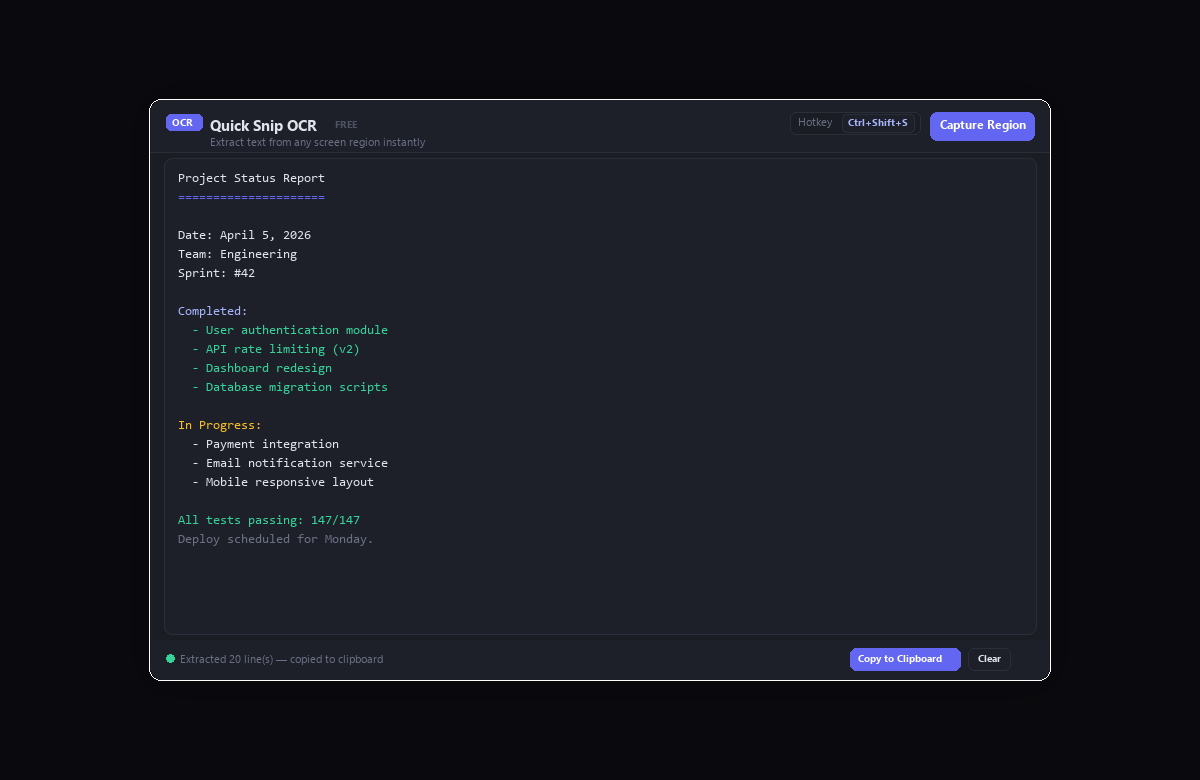
SnapOCR — Windows screen text extractor with extracted text result

How to Copy Text From Any Screen Region

Three steps. Under two seconds. Works from any application.

Press Ctrl+Shift+S

Global hotkey works from any app — browser, PDF viewer, terminal, IDE. The screen dims and a crosshair cursor appears.

Drag to Select

Click and drag to select the region containing text. Works on any monitor and any DPI setting, including 4K and mixed-DPI setups.

Text in Clipboard

6 OCR passes run in parallel with different algorithms. The best result is picked automatically and copied to your clipboard. Just Ctrl+V.

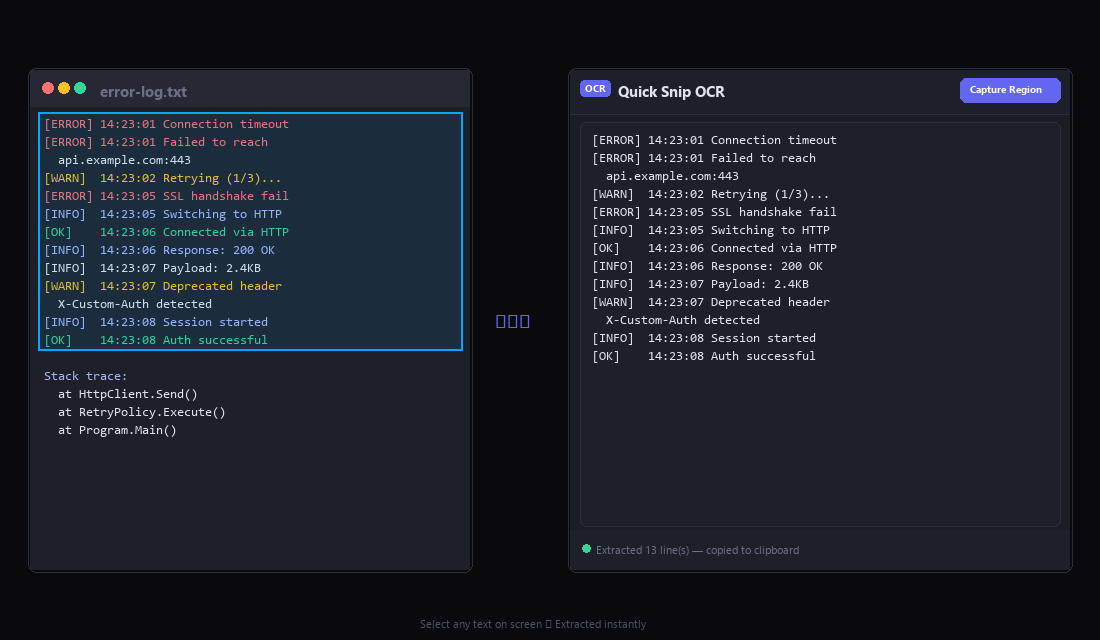
SnapOCR capturing error log text from screen and extracting it

SnapOCR vs Windows Snipping Tool

Snipping Tool added "Text Actions" OCR in 2024. Here's what SnapOCR does differently.

FeatureSnipping Tool (Text Actions)SnapOCR
PriceFree (built-in)Free
PrivacyOn-deviceOn-device, 100% offline
Capture hotkeyWin+Shift+S (screenshot first, then OCR)Ctrl+Shift+S (direct to text, no screenshot saved)
OCR accuracySingle pass6 parallel passes (upscale, Otsu, contrast, grayscale, aggressive, inverted)
Dark backgroundsManual — you OCR what you seeAuto-detects dark bg, inverts before OCR
Small textAs-captured resolutionAuto-upscales up to 4x before OCR
Auto-copy to clipboardMust click "Copy all text"Instant — text in clipboard after selection
Works from any appMust open Snipping Tool firstGlobal hotkey, works from any app
Windows 10 supportWindows 11 onlyWindows 10 and 11
Multi-languageYesAll Windows OCR language packs
HiDPI / 4KYesPer-Monitor V2 DPI awareness
Table extractionCopy as tableText only
QR code scanningYesNo
Redact sensitive dataQuick RedactNo

SnapOCR is better for: accuracy on difficult text, dark mode UIs, small fonts, Windows 10, and speed (text goes straight to clipboard).
Snipping Tool is better for: table extraction, QR codes, and redaction.

Features

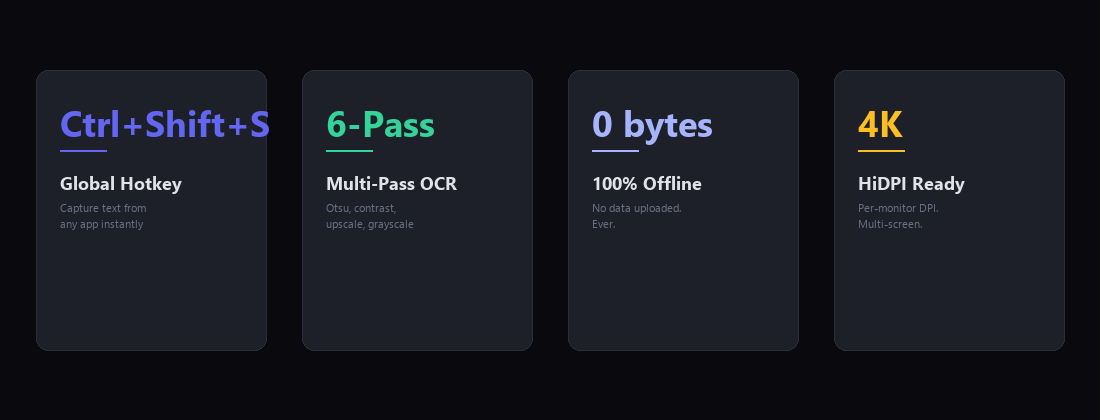
SnapOCR features — global hotkey, 6-pass OCR, 100% offline, HiDPI ready

6-Pass Multi-Algorithm OCR

Runs upscaling, Otsu thresholding, adaptive contrast, grayscale conversion, aggressive preprocessing, and color inversion in parallel. Picks the highest-quality result using a smart scoring algorithm.

Dark Background Auto-Detect

Samples pixel brightness to detect dark backgrounds (white text on dark UI). Automatically inverts the image before OCR processing. No manual adjustment needed.

Smart Upscaling

Small captures are auto-upscaled up to 4x with high-quality bicubic interpolation and sharpening. OCR engines need ~30px font height — this ensures small text is readable.

Global Hotkey

Ctrl+Shift+S works from any application — browser, PDF viewer, terminal, IDE, game. No need to open the app first. Text goes directly to your clipboard.

Settings & Configuration

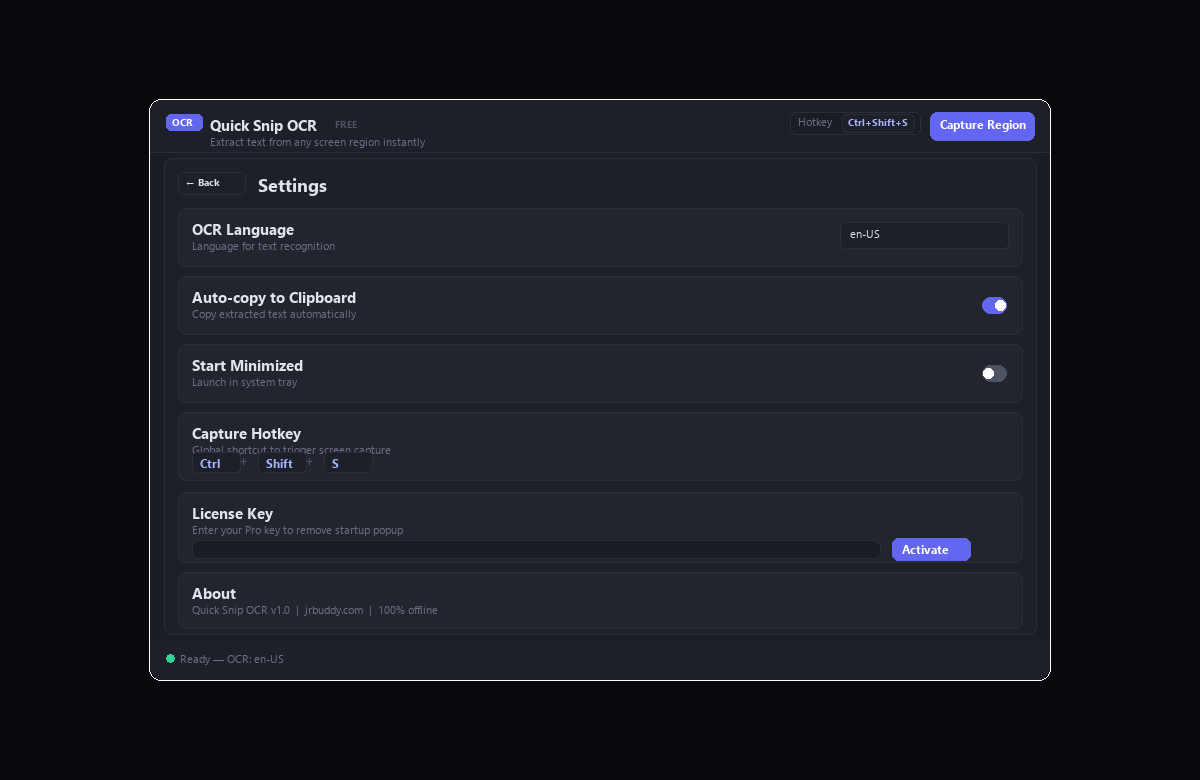
Choose OCR language, toggle auto-copy, configure startup behavior. Enter a Pro license key to remove the startup popup. All settings persisted to AppData.

Per-Monitor DPI Awareness

Uses Per-Monitor V2 DPI awareness for pixel-perfect captures on 4K, ultrawide, and mixed-DPI multi-monitor setups. No blurry or misaligned captures.

Configurable Settings

OCR language, auto-copy, hotkey display, license activation.

SnapOCR settings — language selection, auto-copy toggle, hotkey display, license key

What People Use It For

Error Messages & Logs

Copy error messages from dialog boxes, terminal output, crash dumps, and log windows that don't allow text selection.

Code From Images

Extract code from tutorial screenshots, Stack Overflow images, video frames, and slides. No more retyping.

Protected Content

Copy text from copy-protected PDFs, DRM websites, and applications that disable text selection.

Foreign Language Text

Capture foreign text from websites or apps and paste into a translator. Supports 100+ Windows language packs.

Chat & Social Media

Extract text from screenshot-only messages, Discord images, Twitter/X posts, and social media graphics.

Data From Charts

Extract labels, values, and legends from charts, graphs, and dashboards that don't offer data export.

Frequently Asked Questions

Is SnapOCR better than Windows Snipping Tool OCR?
For accuracy on difficult text, yes. SnapOCR runs 6 parallel OCR passes with different preprocessing algorithms and picks the best result. It also auto-detects dark backgrounds and upscales small text. Snipping Tool runs a single pass on the raw screenshot. However, Snipping Tool has table extraction and QR code scanning, which SnapOCR doesn't.
Does it work on Windows 10?
Yes. Unlike Snipping Tool's Text Actions which requires Windows 11, SnapOCR works on both Windows 10 (build 1809+) and Windows 11. It uses the Windows.Media.Ocr API which is available on both.
How is it different from PowerToys Text Extractor?
PowerToys Text Extractor (Win+Shift+T) does a single OCR pass on the captured region. SnapOCR runs 6 passes with upscaling, thresholding, contrast enhancement, and more — significantly better accuracy on small text, dark backgrounds, and low-contrast images.
Does it upload my screenshots anywhere?
No. Everything runs locally using the Windows built-in OCR engine. No internet connection needed. No data ever leaves your machine. You can verify by disconnecting from the internet — it works identically.
What about dark mode applications?
SnapOCR samples pixel brightness to detect dark backgrounds (light text on dark UI). When detected, it automatically inverts the image before OCR, dramatically improving accuracy on dark mode apps, terminals, and IDEs.
Does it require .NET?
Yes, it requires the .NET 8 Desktop Runtime. If you don't have it, Windows will prompt you to install it on first launch. The runtime is free from Microsoft.
Can I change the hotkey?
Not yet — the hotkey is currently fixed at Ctrl+Shift+S. If it conflicts with another app, you can use the "Capture Region" button in the app window instead.
SnapOCR for Windows

v1.0 · Windows 10/11 · .NET 8 · 4.8 MB MSI installer
Per-user install, no admin rights needed

View on GitHub

Open source · No telemetry · Source available for review

Free Online OCR Tools

Don't need a desktop app? Use these browser-based OCR tools.